AI Tracking Webcam: Is OBSBOT Tiny 2 Lite Worth It?
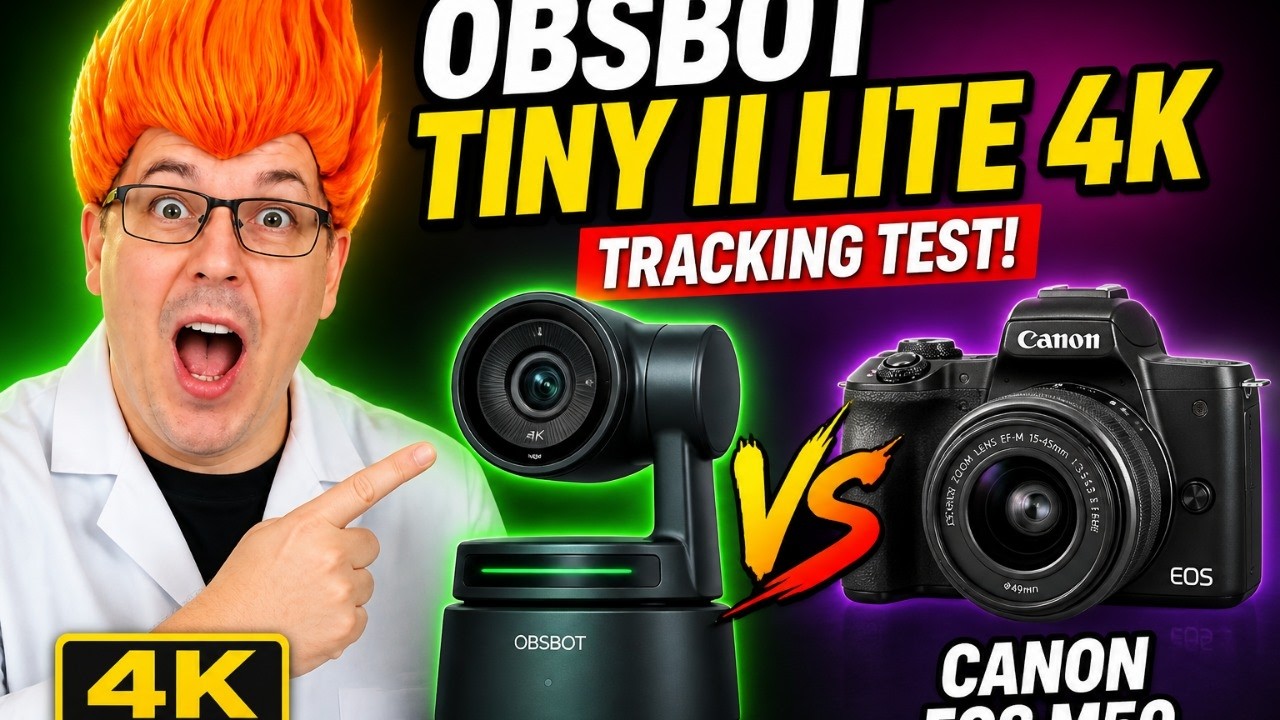
The OBSBOT Tiny 2 Lite is a compact 4K AI PTZ webcam with useful tracking modes, gesture zoom, presets, and simple software for live creators.
Affiliate disclosure: As an Amazon Associate I earn from qualifying purchases. This article may contain affiliate links, which means I may earn a commission at no extra cost to you.
The OBSBOT Tiny 2 Lite is the kind of AI tracking webcam that makes a basic desk setup feel a lot less basic. It is tiny, it does not eat up desk space, and it can follow you while you present, teach, stream, or move around on a call. That is the real selling point here. You get PTZ-style movement and framing controls without putting a big camera in the room.
The OBSBOT Tiny 2 Lite is a strong pick for streamers, teachers, presenters, and remote workers who want automatic framing without a full-size PTZ camera. Its compact size, tracking choices, gesture zoom, and easy software make it especially practical for desktop and small-room setups.
As an Amazon Associate I earn from qualifying purchases.
| Camera type | Compact 4K AI PTZ webcam |
|---|---|
| Standout function | Automatic subject tracking with multiple framing modes |
| Controls | Hand-gesture zoom shortcuts and software controls |
| Workflow tool | Software-controlled saved camera presets |
| Audio | Built-in microphones |
| Best for | Streamers, presenters, teachers, remote workers, and small churches |
I used the OBSBOT Tiny 2 Lite 4K AI PTZ Webcam on my desktop setup and came away impressed with how approachable it was. The tracking was cool, the camera quality looked great to me, and the OBSBOT software was very easy to use. If you want a webcam that stays locked in one wide shot forever, this is probably more camera than you need. If you move while you talk, though, this is where it starts to make sense.
Who should buy this AI tracking webcam?
This camera makes the most sense for people who need framing to adapt while they work. Live streamers are the obvious fit, especially if you stand up, move between positions, show a product, or simply do not want to keep adjusting your camera manually.
I can also see it working well for teachers, school boards, city councils, small churches, and remote workers. A teacher can move while talking at a board. A presenter can stay in frame without a camera operator. A small church can use saved positions for different areas of a service. That is a lot of flexibility from one very small camera.
It is also a smart option if your desk is crowded. I liked that it did not take up much space. Big feature set, small physical footprint. That is a good trade.
Tracking modes are the reason to buy it
The main experience here is automatic tracking. In normal tracking, the camera followed me as I moved around my desk area. My space was limited because I was right up against a wall, so I could not really pace around the room. Even in that tight setup, though, I could see the practical value right away.
I switched over to upper-body tracking, and the camera panned back to frame more than just my head. That is useful when your hands, posture, or what you are holding matters as much as your face. For a tutorial, a product presentation, or a more natural livestream shot, upper-body framing is usually the better look.
There is also a headless tracking mode. Instead of following my head, it framed an area below it. That could be handy for a hands-on demonstration, desk work, or potentially a cooking-style shot. It is not the mode I would use for a standard talking-head stream, but it gives the camera another useful trick.
I also tried lower-body tracking, but my seated desktop setup did not give it a lower body to find. That is not a knock on the camera. It just reinforces the obvious point: choose the tracking mode for the shot you are actually creating. This is not magic. It needs a sensible camera position and a view of the subject.
Gesture zoom is more useful than it sounds
Hand gestures can sound like one of those features you play with once and forget. Here, I think they have a real use. I used gestures to zoom in, zoom back out, and access shortcuts that appeared to move all the way wide or all the way close.
The camera’s green light blinked when it recognized my gesture, which is helpful feedback. You are not standing there wondering whether it saw you. If you are presenting and want a tighter shot to emphasize a point, you can do that without reaching for software controls.
That matters most when you are working alone. A one-person livestream has enough moving parts already: audio, comments, scenes, lighting, and whatever you are trying to teach. Being able to adjust framing quickly with a gesture is a nice shortcut.
Presets can make a small livestream look more polished
The software also lets you save camera positions as presets. This is a feature I use with PTZ cameras in church livestreaming, and it can make a production look much more deliberate than it really is. You set the shots ahead of time, then switch between them when you need to.
For a small church, I can see a preset aimed at the pulpit, another at a piano player, and another at a musician. For a streamer, those could be a normal talking shot, a wider product-demo shot, and a desk shot. You are still doing the switching, but the framing work is already handled.
That is the key difference between this and a regular webcam. A normal webcam is just a window. The Tiny 2 Lite gives you a little camera system.
My take on image quality, microphones, and software
I thought the camera quality was great. The product is a 4K webcam, but my hands-on takeaway is simpler: it gave me a clean, good-looking camera image for this kind of desktop use. I did not run a detailed comparison across lighting conditions or resolutions, so I would not overcomplicate that conclusion.
The camera has built-in microphones, although I used a separate microphone in my setup. So, built-in audio is there as an option for calls or a simpler setup, but I would use a dedicated microphone when audio is important. That is what I did here.
The OBSBOT software was another win. I found it great to use and very easy to use. That matters because features like tracking modes and presets are only helpful if the controls are not a pain. The software did not feel like the obstacle; it was the thing that made the camera’s extra features practical.
+ Pros
- Compact camera design that does not take up much desk space
- Automatic tracking is useful for presenters and streamers who move
- Normal, upper-body, and headless tracking offer flexible framing choices
- Gesture controls provide quick zoom adjustments without software controls
- Saved presets can simplify recurring multi-shot livestream workflows
- I found the camera quality great and the software easy to use
- Built-in microphones provide an audio option for simpler setups
! What to know
- My desk was tight against a wall, so a larger space should give the tracking system more room to work.
- Headless tracking frames an area below the presenter's head, so it is best suited to specific demonstration-style shots.
- Lower-body tracking was not practical in my seated desktop setup.
- The camera includes built-in microphones, but I used a separate microphone for my recording.
What to know before you buy
Think about camera placement before you assume tracking will solve everything. My desk was tight against a wall, which limited how much I could move around. The camera still tracked me, but a larger space gives an automatic tracking camera more room to do what it does best.
Also, the tracking modes are purpose-built. Normal tracking, upper-body tracking, and headless tracking are different tools for different shots. Headless mode is interesting for an area below your face, but it is not a replacement for a conventional presenter frame. The camera gives you options; you still need to pick the one that fits the job.
Finally, do not buy this just because it has built-in microphones if high-quality audio is your priority. They are a convenient option, but I used an external mic for my recording.
Specs
| Spec | Detail |
|---|---|
| Product | OBSBOT Tiny 2 Lite 4K AI PTZ Webcam |
| Resolution class | 4K |
| Tracking modes demonstrated | Normal, upper-body, and headless tracking |
| Camera movement | PTZ-style automatic subject tracking |
| Zoom control | Hand gestures with wide and close shortcuts |
| Presets | Saved camera positions controlled in software |
| Microphones | Built-in microphones |
| Status feedback | Green light blinks when a gesture is recognized |
Scorecard
Multiple tracking modes make it adaptable to different presenter shots.
I found the OBSBOT software easy and great to use.
Tiny footprint is a real advantage in tight setups.
Gesture zoom and presets reduce the need to touch software mid-stream.
Built-in mics are convenient, though I used an external microphone.
OBSBOT Tiny 2 Lite FAQ
Is the OBSBOT Tiny 2 Lite good for live streaming?
Yes. Its automatic tracking, upper-body framing, gesture zoom, and saved presets are all practical for a one-person livestream setup. It is especially useful when you move while presenting.
Can the OBSBOT Tiny 2 Lite follow a presenter?
Yes. I used its normal tracking and upper-body tracking modes, and the camera followed me within my desk-area space. The best results will depend on how much room the presenter has to move and how the camera is positioned.
Does the OBSBOT Tiny 2 Lite have a microphone?
Yes, it has built-in microphones. I used a separate microphone in my setup, so I would treat the built-in mics as a convenience feature rather than my first choice for important audio.
Can you zoom the OBSBOT Tiny 2 Lite with gestures?
Yes. I used hand gestures to zoom closer, zoom back out, and trigger wide and close framing shortcuts. A green status light blinked when the camera recognized the gesture.
Are presets useful on this webcam?
They can be very useful for repeatable shots. You can save positions in the software and switch between them, which is handy for livestreams, presentations, and small church services with multiple areas to frame.
Final recommendation
I like the OBSBOT Tiny 2 Lite because it gives you more than a static webcam without demanding a lot of space or a complicated workflow. Tracking works, the gesture controls are genuinely handy, presets add production value, and the software is easy to work with.
If you are a streamer, teacher, presenter, remote worker, or small church looking for a compact camera that can actively help with framing, this is a really good one to consider. It is fun, capable, and small enough to fit where a larger PTZ camera simply would not.
As an Amazon Associate I earn from qualifying purchases.