Mini PC for Streaming: A Compact Setup That Works
This hand-sized mini PC handled a monitor, Ethernet, USB gear, speakers, and sharp video playback without drama. Verify the exact configuration before buying.
Affiliate disclosure: As an Amazon Associate I earn from qualifying purchases. This article may contain affiliate links, which means I may earn a commission at no extra cost to you.
A mini PC for streaming needs to do more than look small on a desk. It needs to connect to the gear already there, get online reliably, put a clean image on a monitor, and avoid turning a basic setup into an adapter hunt. I set up this hand-sized unit with a monitor, wired Ethernet, keyboard, mouse, speakers, and power, then completed Windows setup and played video. For that compact-desktop job, it behaved the way I wanted it to behave.
The important buying warning comes before anything else: the small computer I used does not match the supplied Skytech Chronos Mini GTX 1650 listing. My firsthand observations apply to the hand-sized mini PC in this article, not automatically to the larger gaming desktop described in that listing. If you are shopping, verify the exact model number, photos, processor, memory, ports, graphics, and operating system before ordering.
The mini PC I set up is a strong fit for a compact secondary streaming or desktop machine: it handled Ethernet, HDMI video, USB peripherals, speakers, and Windows setup cleanly. But verify the exact unit before you buy—the computer I used does not match the supplied Skytech Chronos Mini GTX 1650 listing.
As an Amazon Associate I earn from qualifying purchases.
| Form factor | Hand-sized mini PC |
|---|---|
| Display connection used | HDMI to an existing monitor |
| Networking tested | Wired Ethernet |
| Ports identified | 4 USB, USB-C, 2 HDMI, Ethernet, 3.5 mm audio |
| System reported | Intel Core i7-11800H, 16 GB RAM, Windows 11 Pro |
| Purchase note | Verify configuration; supplied Skytech listing conflicts |
A compact desktop setup without the usual clutter
The first thing that stood out was the size. This little computer fit in my hand. That changes the conversation immediately, especially in a streaming workspace where camera gear, microphones, monitors, lights, chargers, and cables already compete for room. I was not trying to find space for a tower under the desk, behind the monitor, or in an awkward corner.
Small computers can get frustrating quickly when the physical footprint is tiny but the port selection is too limited for real desk use. That was not the situation with the unit I had. On the front, I found two USB ports, USB-C, and a 3.5 mm headphone jack. On the back, there were two more USB ports, two HDMI ports, Ethernet, and the power connection.
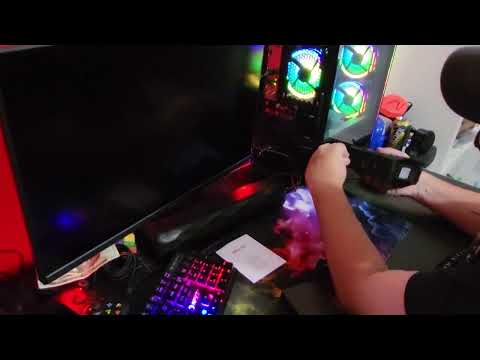
Those connections covered the normal equipment I wanted to use without adding adapters in my setup. I connected an existing monitor over HDMI, plugged in Ethernet, added a mouse and keyboard through USB, and used the front headphone connection for speakers. Then I connected power. A status light came on, and my keyboard powered right up.
That sequence is worth calling out because it is the practical test for this kind of computer. A compact PC is only convenient if it accepts the everyday gear you already own. In my case, the display, wired network, input devices, and speakers all had a place to connect. I did not need to choose between using speakers and adding another USB accessory, and I did not need to rearrange the desk around a full-size case.
For a streaming desk, I see the small size as useful rather than just novel. It can sit near a monitor or work as a separate desktop without becoming the most dominant object in the room. The compact design does not mean it replaces every possible primary workstation, but it does make a strong case for a focused supporting role.
My mini PC for streaming setup experience
Windows initial setup was straightforward. The mouse was working on screen right away, and I moved through the normal language, keyboard, account, password, and security-question prompts. That is not a stress test, but it is a meaningful first check: the monitor output was active, the mouse responded, and I could work through the operating system without a connection problem getting in the way.
Once I reached the desktop, I noticed Google Chrome was already installed. That is a small detail, but it saves a step if Chrome is what you use every day. For a support computer, that can mean getting to browser-based dashboards, chat, documents, upload pages, or other web tasks without first stopping to install a browser.
I also checked the wired connection. I ran an Ethernet speed test, and the result matched the internet speed I expect at my location. In other words, the wired connection was not holding things back in my setup. That is the result I care about from Ethernet: it connected cleanly and delivered the level of service my internet connection normally provides.
For live streaming work, I would rather have a wired connection for a support machine when one is available. A secondary computer can handle browser-based tasks, stream management, chat, music, uploads, or other supporting work so one system is not trying to do everything at once. This mini PC has the connectivity I used for that role: Ethernet, HDMI, USB peripherals, and audio through the front jack.
I did not test Wi-Fi because I used Ethernet. I also did not run streaming software, test an encoder, measure CPU load, or use the system through a long broadcast. So I cannot make a performance claim about those workloads. What I can say is that the foundation for a tidy wired secondary setup worked properly in my hands: the computer came online, accepted the peripherals, completed setup, and drove the display.
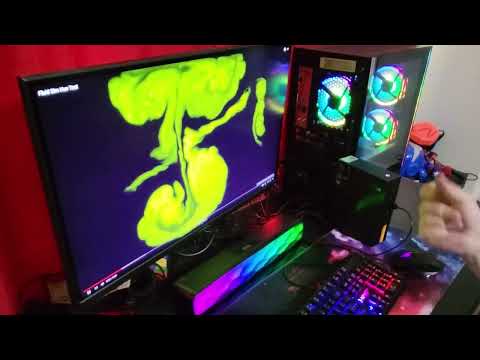
Video output looked sharp and responsive
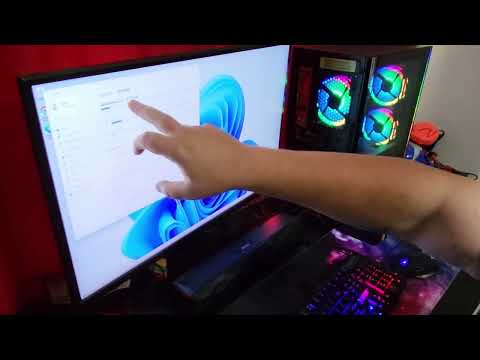
I pulled up an aquarium video to get a basic look at the picture coming from the PC to the monitor. The colors looked vivid, the image looked sharp, and I did not notice latency during playback. It was a simple visual check, but it directly reflects the kind of display experience I want from a small desktop used beside a main streaming computer.
The value here is not that an aquarium video somehow represents every graphics workload. It is that the HDMI path I used delivered a pleasing image to the connected monitor, with color and clarity that looked good to me. If the job is ordinary desktop video, browser work, monitoring a stream-related page, or serving as a second-screen computer, that is a positive result.
It does not automatically answer every gaming question. I did not run game benchmarks, measure frame rates, test thermals, listen for fan noise during a long session, or use it through extended gaming sessions. I would not buy this particular machine based on an assumption about game performance. The source listing makes broad gaming claims, but the actual computer I handled was a materially different form factor and reported different system information.
What I can say is narrower and more useful: HDMI to the monitor worked, the image looked sharp and vivid, and I saw no lag during the video playback I watched. That is the appropriate takeaway from my setup rather than a substitute for gaming benchmarks I did not run.
The system information I found
Inside Windows, I saw roughly 475 GB of total storage, with about 36 GB already used by the installed system. That figure is worth considering in context. It is enough room for Windows, applications, documents, and a measured collection of files, but recordings and video projects can consume storage quickly. For a secondary streaming computer focused on support tasks, it may be perfectly workable. For a machine intended to hold a large game library or a deep archive of local recordings, storage planning matters more.
The system information screen on the computer I used showed 16 GB of RAM, an 11th-generation Intel Core i7-11800H at 2.3 GHz, a 64-bit x64-based processor, and Windows 11 Pro. Those are the details the system reported while I was setting up this specific hand-sized unit.
Now for the essential purchasing distinction: those details do not match the supplied Skytech Chronos Mini GTX 1650 listing. The supplied listing describes a much larger gaming desktop configuration with an Intel Core i3-10105F, GeForce GTX 1650 graphics, 8 GB of RAM, Windows 11 Home, RGB fans, and a front-mesh case. That is not the hand-sized mini PC I set up.
This is not a minor variation such as a different storage option or an updated color. The processor, reported memory, operating system, physical design, and port layout I observed differ from the supplied listing description. That means my experience should not be used to confirm the listing’s graphics card, included keyboard and mouse, RGB case, DisplayPort connection, warranty, or claimed game frame rates.
If you are comparing listings, use this as a buyer checklist. Match the product photos to the physical design you expect. Confirm the model number. Read the processor, RAM, storage, graphics, operating system, and port list on the exact page you are buying from. If those details do not line up, stop and resolve the mismatch before purchase. The compact unit I used made a good impression, but buying the right item matters more than transferring a positive impression to a different computer.
+ Pros
- Hand-sized form factor saves major desk space
- Connected a monitor, Ethernet, keyboard, mouse, and speakers in one setup
- Wired Ethernet delivered the internet speed I expected
- Sharp, vivid HDMI video playback with no latency I noticed
- Google Chrome was already installed
! What to know
- Verify the exact model before buying: the supplied Skytech Chronos Mini GTX 1650 listing does not match the mini PC I used.
- Windows reported about 475 GB total storage, with roughly 36 GB already used by the installed system.
- I used wired Ethernet; I did not test Wi-Fi performance.
- I did not test game frame rates, thermals, fan noise, upgradeability, streaming-software performance, or long-session stability.
Who this compact computer makes sense for
I would consider this style of mini PC if you want a small desktop that can live behind a monitor or quietly on a desk while still supporting the basics: HDMI display output, Ethernet, USB peripherals, and speakers. Its strongest appeal is not a claim that it does everything. Its appeal is that it handled a sensible connected-desk setup in a very small footprint.
- Secondary streaming setups: I see it as a possible machine for browser-based support tasks, chat, music, uploads, and other work that can be separated from a main computer.
- Simple wired desktop setups: A monitor, keyboard, mouse, speakers, and Ethernet all connected cleanly in my setup.
- Space-conscious desks: The hand-sized form factor is the main physical advantage, particularly where a conventional tower would be inconvenient.
- Everyday web and video use: Windows setup, Chrome access, wired networking, and video playback were straightforward for me.
- Existing-monitor users: I used HDMI to connect my current monitor, so I did not need a special display arrangement to get started.
I would be more cautious if your whole reason for buying is serious gaming. The supplied listing makes gaming claims, but I did not test games on the mini PC I handled, and the listing configuration does not line up with the system information I saw. It is also not the unit to buy on the assumption that Wi-Fi, graphics hardware, upgradeability, internal drive options, or long-session thermal behavior will match your needs, because I did not establish those details.
How I would plan a compact streaming workspace around it
The setup I used was straightforward: one monitor over HDMI, wired Ethernet, keyboard and mouse through USB, and speakers through the front 3.5 mm jack. That arrangement is useful because each connection has a clear job. The monitor gives the mini PC its workspace, Ethernet provides the tested network path, USB supports normal desktop control, and the audio jack handles speakers without occupying another USB port.
For someone building a second-computer workflow, the practical question is not whether a mini PC can magically take over every demanding task. It is whether moving selected work away from a main machine makes the desk and workflow easier to manage. Tasks that are primarily browser-based or administrative can be natural candidates, while the main computer remains focused on the primary production workload. I see this particular setup as evidence that the physical side of that plan can be neat and uncomplicated.
There is also a distinction between “connected” and “proven for every job.” I confirmed that the Ethernet connection delivered expected speed at my location and that video playback looked good. I did not confirm streaming-software performance, capture-device compatibility, network behavior under a live broadcast, or a specific multi-monitor workflow. Buyers with those requirements should verify their own software and hardware needs against the exact mini PC configuration.
That limitation does not erase the useful part of the experience. It keeps the recommendation honest. This was a compact machine that got through setup cleanly, recognized the peripherals I attached, and produced sharp video on the connected display. For the buyer whose priority is a small, wired, basic desktop companion, those are the observations that matter most.
Specifications and the buying mismatch
The observed specifications below describe the mini PC I used, based on the ports I identified and the Windows information I read. They should not be treated as specifications for the supplied Skytech listing unless the seller confirms that the exact item is the same unit.
Specs
| Spec | Detail |
|---|---|
| Form factor | Hand-sized mini PC, as observed |
| Front ports observed | 2 USB ports, USB-C, 3.5 mm headphone jack |
| Rear ports observed | 2 USB ports, 2 HDMI, Ethernet, power connection |
| Processor reported in Windows | 11th-gen Intel Core i7-11800H at 2.3 GHz |
| Memory reported in Windows | 16 GB RAM |
| Operating system reported in Windows | Windows 11 Pro, 64-bit |
| Storage reported in Windows | About 475 GB total; about 36 GB used |
| Supplied listing claim | Skytech Chronos Mini with Core i3-10105F, GTX 1650, 8 GB RAM, and 500 GB SSD; this conflicts with the unit I used |
The system-reported storage figure also deserves careful wording. I saw about 475 GB total in Windows, with roughly 36 GB already used by the installed system. That is an observed usable/system-reported amount, not confirmation of a specific marketed drive specification. Likewise, the i7-11800H, 16 GB RAM, and Windows 11 Pro details are what the computer I had reported, not a promise about a similarly named product page.
The supplied listing says it is a Skytech Chronos Mini gaming desktop with a GTX 1650 and 8 GB of memory. The computer on my desk reported an i7-11800H, 16 GB of RAM, Windows 11 Pro, and a hand-sized mini-PC design. If you are shopping from that listing, pause and verify exactly what will arrive before you hit the buy button. Purchase clarity is the weakest part of this situation, not the basic setup experience I had with the compact PC.
Scorecard
It fit in my hand.
Handled monitor, Ethernet, USB gear, and speakers.
Windows setup and peripherals worked cleanly.
Picture looked sharp and vivid with no latency I noticed.
The supplied Skytech listing does not match the mini PC I handled.
FAQ
Is this a good mini PC for streaming?
For secondary streaming duties, it looks promising based on my setup. I had Ethernet, HDMI output, USB input devices, speakers, Windows, and video playback working in one compact arrangement. I would use a wired connection like I did when reliability matters. I did not test streaming software, encoding, or a full live broadcast, so those remain questions for the exact configuration you buy.
Can it connect to a monitor and regular desktop accessories?
Yes, it did in my setup. I connected a monitor through HDMI, plus Ethernet, a mouse, keyboard, speakers, and power. The keyboard powered on after I connected power, and the mouse worked during Windows setup. I used the front 3.5 mm jack for the speakers.
How much usable storage did you see?
Windows reported about 475 GB total, with roughly 36 GB already in use by the installed system. That is the figure I observed in Windows, rather than a confirmation of the storage specification on the supplied listing.
What ports did you identify on the mini PC?
I identified two USB ports, USB-C, and a 3.5 mm headphone jack on the front. On the back, I identified two more USB ports, two HDMI ports, Ethernet, and the power connection. Those ports accommodated the equipment I connected in my setup.
Is this the same as the Skytech Chronos Mini GTX 1650 listing?
I would not assume that. The supplied listing describes a Skytech gaming tower configuration, while the computer I handled was a hand-sized mini PC with different reported processor, memory, operating system, and port details. Verify the exact product before ordering.
Did you test gaming performance?
No. I did not test games, frame rates, fan noise, temperatures, upgradeability, or long-session stability. The supplied listing makes gaming claims, but those claims should be checked against the exact model you are buying rather than inferred from my compact mini-PC setup.
Did you test Wi-Fi?
No. I used wired Ethernet and found that its speed matched what I expect from my internet connection. I cannot say how Wi-Fi performance compares because I did not test it.
Final recommendation
I liked the compact mini PC I set up. It was tiny, practical, and easy to connect to the normal gear on a desk. The wired Ethernet connection delivered the speed I expected, the monitor output looked sharp and colorful, and it handled basic video playback without noticeable latency. Windows setup was uncomplicated, and having Chrome already installed was a useful small convenience.
For a compact secondary computer in a streaming workspace, that is a useful package. It makes the most sense for someone who values a small physical footprint and wants to connect a display, wired network, keyboard, mouse, and speakers without creating more desk clutter. It is also a reasonable direction for separating support work from a primary computer, provided your own software needs are modest or independently verified.
Just do not let the supplied product-page naming confuse the decision. The mini PC I used and the Skytech desktop described by the supplied listing appear to be different classes of computer. Buy the exact configuration you have verified, not the configuration you assume this experience represents.
As an Amazon Associate I earn from qualifying purchases.