AI Tracking Webcam for Streaming: Tiny 3 Review
The OBSBOT Tiny 3 is a compact 4K PTZ webcam that gives streamers fast tracking, useful presets, and hands-free control without taking over the desk.
Affiliate disclosure: As an Amazon Associate I earn from qualifying purchases. This article may contain affiliate links, which means I may earn a commission at no extra cost to you.
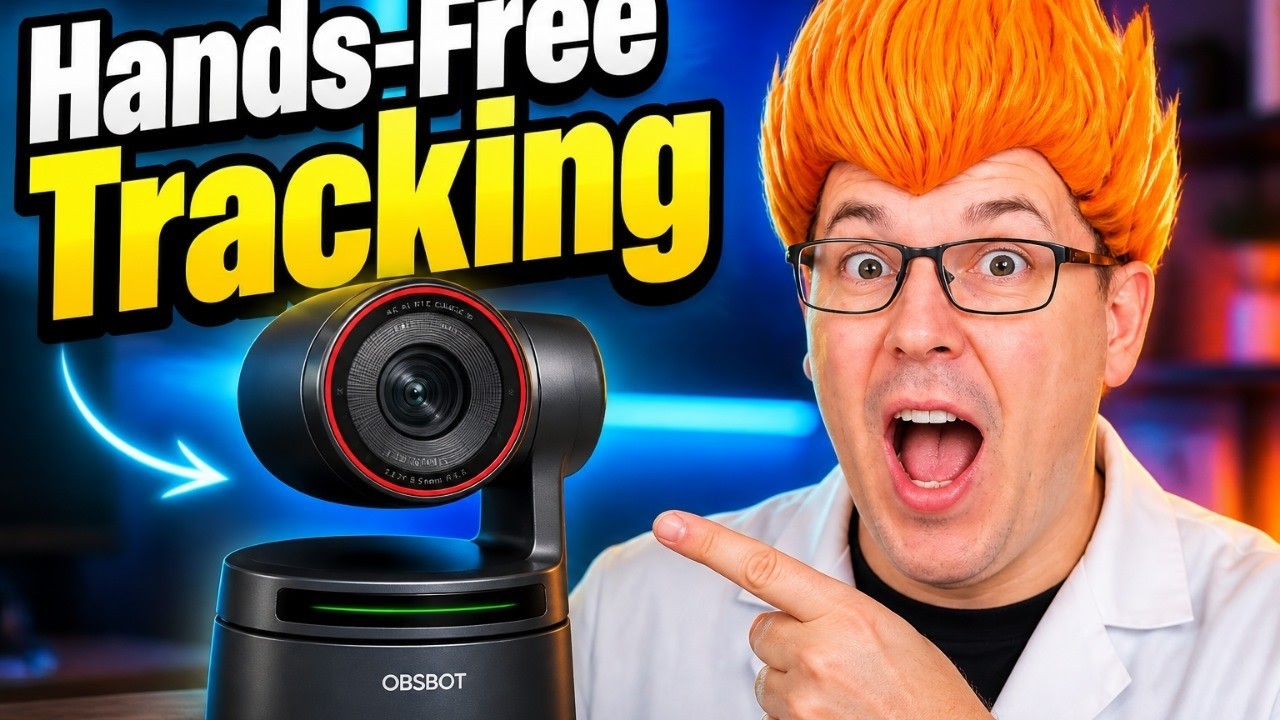
The OBSBOT Tiny 3 is the kind of webcam that can replace a lot of manual camera babysitting. I set it up, moved around the room, called up positions, changed zoom, switched off tracking, and put it to sleep without living in the app. For a compact AI tracking webcam for streaming, that is the point: it gets out of the way while keeping you framed.
The OBSBOT Tiny 3 is an excellent compact AI tracking webcam for streamers, presenters, and product reviewers who want automated framing without a bulky PTZ setup. Tracking was quick in my room, and the combination of app controls, presets, voice commands, and gestures makes it unusually flexible. Speak voice commands clearly and slowly, and lock the camera when you want a fixed shot.
As an Amazon Associate I earn from qualifying purchases.
| Best for | Solo streamers, presenters, meetings, and product reviewers |
|---|---|
| Camera type | Compact 4K AI PTZ webcam |
| Mounting | Magnetic monitor mount and tripod mounting point |
| Hands-free controls | Voice commands and gesture controls |
| Framing tools | AI tracking, zoom, and saved positions |
| Included accessories | Case, USB-C cable, USB-C-to-USB-A adapter, adjustable mount |
It is not just a camera with tracking bolted on. The Tiny 3 gives you several ways to control the shot: the OBSBOT app, voice commands, hand gestures, and saved positions. That matters for live streams, meetings, product reviews, and any setup where walking back to the computer would interrupt the flow.
Who should buy the OBSBOT Tiny 3?
I think this camera makes the most sense for live streamers and presenters who move. If you pace while teaching, stand to show a product, or need to transition between a wide desk shot and a tighter talking-head shot, the Tiny 3 is built for that job.
It is also a strong fit for remote workers hosting meetings, small teams sharing a room, and product reviewers who need another angle without dedicating a full-size camera to it. I already use other OBSBOT cameras in my regular product-review and overhead-camera setups, so I immediately saw where this little one fits: it can live on a monitor, move to a tripod, or travel in its included case.
Buy something simpler if you only need a fixed webcam for occasional calls. The whole value proposition here is PTZ movement and hands-free framing. If you will never use either, you are paying for features you will leave idle.
My hands-on setup: tiny camera, practical mounting
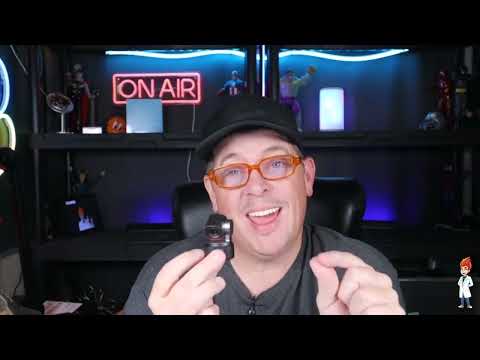
The first thing I noticed was the size. This is a notably small 4K camera. That sounds like a minor point until you start placing it around a desk full of displays, lights, microphones, and mounting arms. A compact camera is easier to fit into a real streaming setup.
In the box, I had a storage case, USB-C cable, USB-C-to-USB-A adapter, and an adjustable magnetic monitor mount. The camera snaps magnetically onto that mount. The mount has a rubberized contact area, so I could rest it over a monitor edge and adjust the position rather than trying to balance the camera in a weird spot.
I also liked having a tripod mounting point. A monitor mount is convenient for calls, but a tripod changes the use case. You can place the camera farther back for a wider presentation angle, put it beside a product table, or take it to a small business or church stream without rebuilding the whole setup.
Connection was straightforward: I connected it by USB-C, opened the OBSBOT app, and had access to the camera controls. No drama. That is exactly how this part should go.
AI tracking is the Tiny 3 feature that changes a live stream
Tracking is the reason to consider this over a conventional webcam. I turned it on and moved around the room, and the camera followed me quickly. That is a very different experience from sitting rigidly in the center of a fixed webcam frame.
For a live teaching stream or a product presentation, quick tracking gives you freedom to step aside, grab an item, or use a whiteboard without immediately disappearing from the shot. It also makes this camera useful as a secondary angle for reviewers. Put it on a tripod, set the framing, and let it do some of the operating work.
There is one practical tradeoff: active tracking means camera movement. Sometimes that is exactly what you want. Sometimes it gets old. I could lock the camera into a stationary position when I wanted a fixed shot, then turn tracking back on when I needed it. That flexibility is better than treating tracking as an all-or-nothing gimmick.
Voice commands and gestures: useful, with one rule
The Tiny 3 gives you more hands-free control than most webcams. I used voice commands to turn tracking on and off, put the camera to sleep, wake it, adjust zoom, and recall saved positions. Those functions worked in my setup.
The rule is simple: speak clearly and do not rush it. When I spoke too fast or mumbled, the camera did not reliably pick up the command. Slow down, say the command cleanly, and it was much more dependable. That is not a deal-breaker, but it is something I would learn before going live.
Saved positions are especially useful. I created two positions in the app, then recalled them by voice. Think of one position as your normal host framing and another as a wider product or presentation shot. The catch is sensible: you need to create those positions in the app before voice recall can do anything.
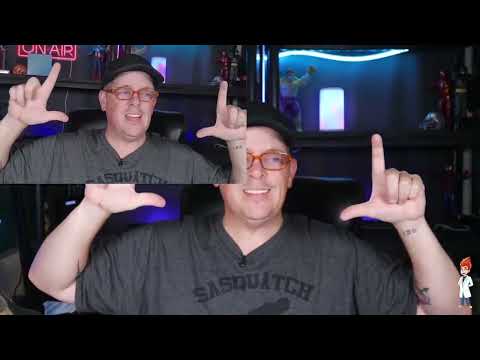
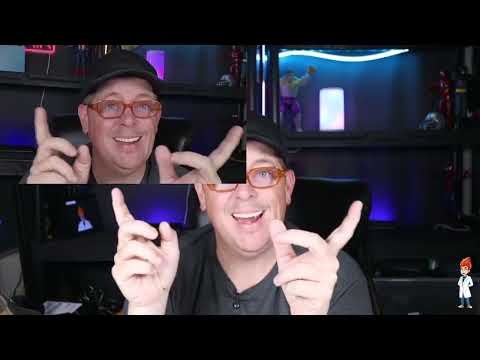
I also tried the gesture controls. I could toggle tracking, switch to the default 2x zoom, and use pinch-like hand motions for dynamic zoom. Gesture control is not the feature I would build an entire stream around, but it is a nice backup when your hands are visible and you do not want to touch the computer. The camera gives you options, which is the bigger win.
When I rotated the Tiny 3 sideways, it automatically switched into a vertical orientation. That was a nice surprise. If vertical content is part of your workflow, being able to physically turn the camera and have it react correctly is a clean, practical touch.
+ Pros
- Compact 4K camera design that is easy to place in a desk setup
- Quick AI subject tracking in my room
- Voice control for tracking, sleep/wake, zoom, and saved presets
- Gesture controls offer hands-free tracking and zoom adjustments
- Magnetic monitor mount, tripod mounting point, case, cable, and USB-A adapter are included
- Extensive app controls for focus, exposure, white balance, and image tuning
- Automatic vertical orientation worked when I turned the camera sideways
− Cons
- Voice commands were less reliable when I spoke too quickly or mumbled
How good does the OBSBOT Tiny 3 look?
I put the Tiny 3 beside my Canon camera in my own setup. My Canon is a much more expensive camera, so this was not a fair price-class matchup. Still, the two looked very close on screen. There were differences in skin tone, lighting, and camera placement, as you would expect, but I liked the Tiny 3 image a lot.
That is the important takeaway. This did not look like a cheap convenience webcam trying to act like a streaming camera. In my lighting, it produced a good-looking image that held up surprisingly well beside a camera I have used for a long time.
The app also gives you real adjustment depth. I had access to autofocus, auto or manual exposure, face or global exposure behavior, image styles, white balance, temperature, sharpness, hue, anti-flicker, ISO, and exposure compensation. That is more useful than a pile of marketing labels because it lets you correct your actual room.
For example, I could choose face exposure or global exposure. Face exposure will often make more sense for a streamer sitting at a desk. Global exposure can make sense when the room or the items you are showing matter as much as your face. I also switched between the standard and streaming image styles, and adjusted white balance and exposure settings from the app.
OBSBOT lists the Tiny 3 as supporting up to 4K at 30 fps and 1080p at 120 fps with a 1/1.28-inch CMOS sensor. Those are useful headline specifications, but the part I can speak to directly is that the live image looked very good in my setup and gave me plenty of controls to tune it.
What about the built-in microphone?
I switched my recording input to the Tiny 3 microphone and saw stereo level activity. It was working as an input source. I did not make a definitive sound-quality call from that session, so I would not buy this camera on its microphone alone.
OBSBOT says the camera uses a three-microphone system with one omnidirectional and two directional microphones, plus five audio modes. That could be useful for people who want a simple all-in-one meeting setup. For a serious live stream, though, I would still plan around a dedicated microphone until you have heard the Tiny 3 in your own room.
Specs
| Spec | Detail |
|---|---|
| Product | OBSBOT Tiny 3 AI-Powered Spatial Audio 4K PTZ Webcam |
| Maximum listed resolution | 4K at 30 fps |
| Maximum listed high-frame-rate mode | 1080p at 120 fps |
| Listed sensor | 1/1.28-inch CMOS |
| Tracking | AI subject tracking |
| Orientation | Automatic vertical orientation when rotated sideways |
| Control options | Companion app, voice commands, and gesture controls |
| Image adjustments | Autofocus, exposure, white balance, anti-flicker, ISO, sharpness, hue, and more |
| Microphone | Built-in microphone operation; OBSBOT claims a three-microphone system |
| Connection | USB-C, with USB-C-to-USB-A adapter included |
Is this AI tracking webcam for streaming worth it?
Yes, if automated framing will improve your workflow. That sounds obvious, but it is the buying decision. The Tiny 3 is not trying to be a basic webcam at the lowest possible price. It is a compact PTZ camera designed to give you more control over the shot without requiring another person behind the scenes.
I would use it for a solo live stream where I move around, as a mobile product-review camera, or as an extra angle on a monitor or tripod. I especially like the combination of compact size, magnetic mounting, fast tracking, image controls, presets, and a stationary lock option. That combination makes the camera feel practical instead of overcomplicated.
Just set up your positions before the show, practice the voice commands slowly, and decide when tracking helps versus when a fixed composition looks cleaner. Do that, and the Tiny 3 can make a one-person production feel much less like a one-person production.
Scorecard
It followed me quickly and can be locked when a fixed shot is better.
Voice, gestures, zoom, sleep/wake, and presets are unusually flexible.
It looked very close to my much more expensive Canon in my setup.
USB connection, magnetic monitor mount, tripod option, and case are practical.
Commands need clear, deliberate speech rather than rushed delivery.
Frequently asked questions
Can the OBSBOT Tiny 3 track a presenter during a live stream?
Yes. I enabled tracking and moved around the room, and it followed me quickly. You can also lock it into a stationary position when you do not want the camera moving.
Can I mount the OBSBOT Tiny 3 on a monitor?
Yes. It includes an adjustable magnetic mount with a rubberized monitor contact area. The camera attaches magnetically to the mount. It also has a tripod mounting point.
Does the OBSBOT Tiny 3 support voice control?
Yes. I used voice commands for tracking, sleep and wake, zoom, and recalling saved positions. Commands worked best when I said them slowly and clearly.
Can the Tiny 3 save different camera positions?
Yes. I created two positions in the OBSBOT app and recalled them with voice commands. You need to create a preset in the app before recalling it.
Is the built-in microphone good enough for streaming?
The microphone operated as a stereo audio source when I selected it, but I did not make a final judgment on its sound quality. I would use a dedicated microphone for a serious stream unless you have tested the Tiny 3 in your own environment.
Final recommendation
The OBSBOT Tiny 3 is a strong choice when you want a compact 4K camera that can actively help run the shot. Its tracking was quick for me, the image looked impressively close to my Canon in the same setup, and the control options are genuinely useful rather than decorative.
For a fixed, occasional webcam, it is probably more camera than you need. For live streamers, meeting hosts, presenters, and reviewers who move, it is one of the more capable ways to add automated framing to a small desk setup.
As an Amazon Associate I earn from qualifying purchases.